Installing ChordGlow
- Double-click ChordGlow-1.1.0-macOS.pkg. Because the installer is not signed by Apple, macOS blocks it: click OK (or Done).
- Open System Settings > Privacy & Security, scroll down to Security and click Open Anyway (available for about an hour after the attempt). Confirm with your password, then click Open.
- Follow the installer: the VST3 and Audio Unit versions are selected by default (use Customize to keep only one). They are installed for all users of the Mac, in
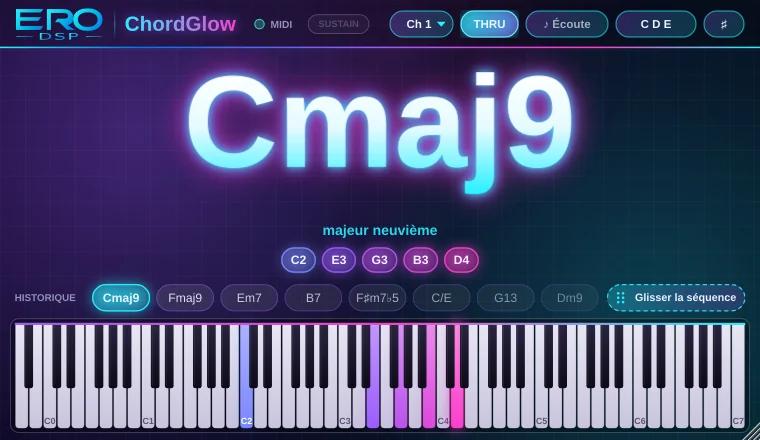
/Library/Audio/Plug-Ins/VST3and/Library/Audio/Plug-Ins/Components. - Restart your music app and run a plug-in scan: ChordGlow appears among the instruments, manufacturer ERO DSP. Load it on an instrument track, select your MIDI keyboard as input and turn on monitoring.
On macOS Sonoma (14) and earlier, you can also right-click (or Control-click) the .pkg file, choose Open, then confirm. Since macOS Sequoia (15), only the System Settings method above works.